 Custom T-shirts
 Hats
 Pens
 Hoodies & jackets
 Pants
 Custom jeans
 Custom banners
 Yard signs
 Mouse pads
 Beanies
 Crewnecks & sweatshirts
 Work uniforms
 Stickers & labels
 Tote bags
 Drinkware
 Custom packaging
 Regular business cards
 Metal business cards
 Specialty business cards
 Flyers & menus
 Bottle opener business cards
NFC Google review cards.
Most happy customers mean to leave a review and then forget. An NFC review card removes the hard part: one tap opens your Google review box on their phone while they are still in front of you. Here is how to set one up and use it the right way.

- The short answer
- Why reviews stall
- How to set one up
- Where to use it
- Google’s review rules
- What to say
- Questions
The short answer
An NFC Google review card is a card with a chip that opens your Google review page when a customer taps it on their phone. It works on iPhone XS and newer and most Android phones, with no app. Ask every customer, never offer anything in return, and you stay inside Google’s rules.
Why getting reviews is so hard
Asking is easy. The trouble is everything after the ask. The customer has to remember, open Google, search your business, find the review button and then write something. Every step loses people.
A review card cuts all of that down to one tap. The review box opens on their phone, and all they have to do is pick the stars and type a line.
How to set up an NFC review card
- Find your review link. Sign in to your Google Business Profile, open it on Google Search or Maps, and choose the option to ask for reviews. Google gives you a short link that opens your review form.
- Put that link on the card. When you order, tell the maker the card should open your review page. A good maker tests the link on a phone before the card ships.
- Print a clear prompt. A short line like “Tap to review us” with your logo tells people exactly what the card does.
- Test it on a few phones. Try an iPhone and an Android phone so you know where to tell customers to tap.
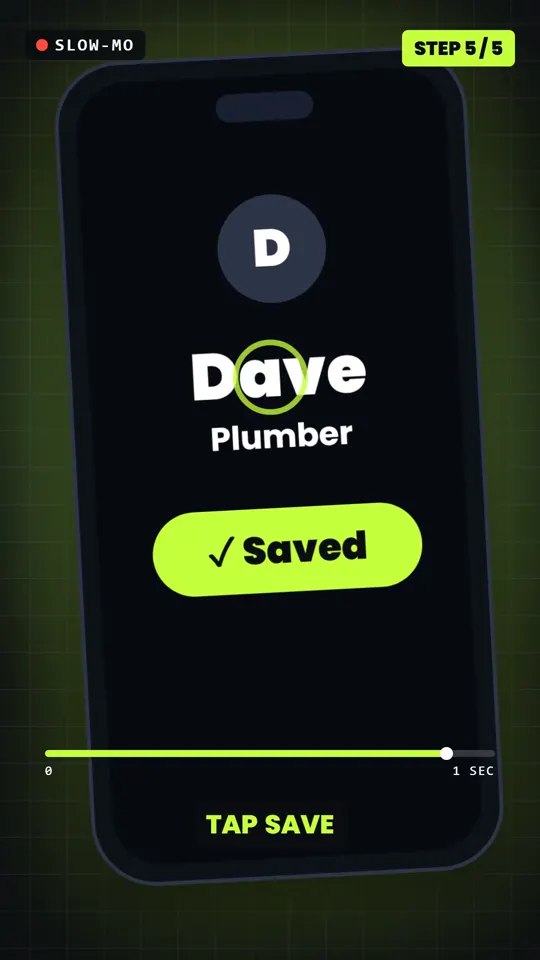
Where review cards work best
At the counter or the table
Restaurants, cafés, salons and shops get the most out of a card that sits by the register or comes with the check. The customer is already holding their phone.
At the end of a job
Contractors, cleaners, detailers and movers can tap the card with the customer right after they walk through the finished work.
On the team
Give each staff member a card. Reviews that mention a person by name tend to feel more genuine, and your team gets credit for great service.
Asking for reviews the way Google allows
Google has clear rules about reviews, and breaking them can get reviews removed. Keep these in mind:
- Ask every customer, not only the happy ones. Google does not allow you to pick and choose who gets asked so you only collect good reviews.
- Never pay or reward people for reviews. No discounts, freebies or prize draws in exchange for a review.
- Don’t write reviews for yourself or ask staff, friends or family to review your business.
- Don’t ask for a certain star rating. Ask for honest feedback.
A review card fits these rules perfectly: you hand it to everyone and let them say what they think.
What to say when you hand it over
Keep it short and natural. Something like: “If you have a second, a review really helps us. Just tap this on your phone.” Then hold the card where their phone’s reader is, near the top on an iPhone or the middle of the back on most Android phones.
Answer every review
Reply to good and bad reviews alike. It shows future customers that a real person is listening, and it encourages more people to leave one.
Shop the cards.
Every order starts with a free design and a proof you approve.
Questions,
answered.
Still wondering? Ask us anything.
Do customers need the Google Maps app?
No. The link opens in their browser or in the Google app if they have it.
Can the card open my review page and my website?
A card opens one link. Many businesses use one card for reviews and another for contact details.
Can I change the link later?
If your card links through a page you control, yes. Ask the maker before you order.
Is a QR code better?
A QR code works too, but it takes longer: open the camera, aim, tap the banner. A tap is faster at a busy counter.
Keep reading.
More guides to NFC and business cards.
 NFC business card not working?If an NFC business card won't open on a phone, it is usually the screen, the tap spot or the case. Eight quick fixes for iPhone and Android.Read the guide →
 Which phones can read NFC business cards?Which iPhones and Android phones read NFC business cards, how to check your phone, and where to tap. A simple guide for every phone.Read the guide →
- NFC vs QR code business cards.NFC or QR code on your business card? How each one works, how fast they are, which phones support them and when to use both.Read the guide →
Maximize Your Reviews
Get NFC cards that open your Google review page, with a free design and a proof before anything is made.